Test your project
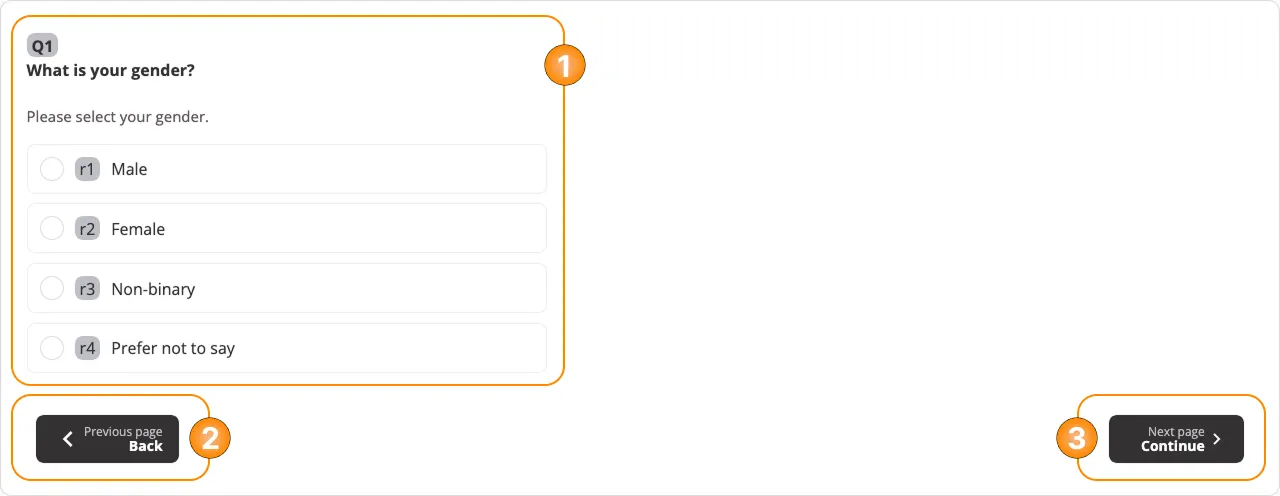
Once you set up your project, you have the option to test it - this way you can see what the real participants will see when they open the project (with a few small differences, explained below). As already mentioned in the previous articles in the Project Builder section of the documentation, you can test the project by clicking on the Test project button, that is present on each page of the project builder module.
When you open the project, on each page there are three main interactive elements:
- Field where the question/info screen appears - all different question types are described in details in the respective article.
- Back Button: Button to go back to the previous page of the project.
- Continue Button: Button to go to the next page of the project.
Action Buttons
A few notes here on the two action buttons:
- The "Back" button is only visible when you test the project - the real participants won't see it, since they don't have the ability to go back in the project, they can only move forward.
- The "Continue" button will get you to the next page only if you've passed all validations on the current page, e.g.:
- You've filled in all mandatory questions on the page.
- Your answers at all questions on the page are valid - they pass the validation for each individual question.