Project Report
Main Specifics

The Project Report page is used to check out information on the project on different topics, but mainly on the distribution of the participants that are part of the project. On this page you'll find detailed information, with examples, about how to work with the information on the Project Report page and what functionalities it has.
The main interactive elements of the page are the following:
- Button to go back to the Dashboard page.
- Button that opens the Data Edits module, described in details in the respective article.
- Button that opens the Project Builder module, described in details in the respective articles.
- Field to check the basic information of the project, described in details in the respective section below.
- Field to check the information on the sample sources from the project, described in details in the respective section below.
- Field to access the Data Exports module, described in details in the respective article. In here you can also check the information on the data from the project, described in details in the respective section below.
- Field to check the information on the terminates from the project, described in details in the respective section below.
- Field to check the information on the quotas from the project, described in details in the respective section below.
Base Info

In the Base Info section you can find information on the general specifics of the project:
- The name of the project.
- The unique ID of the project, that is auto-generated by the system.
- The number of pages in the project.
- The number of questions in the project.
- The status of the project - it can be either open or closed.
- The status of the project builder for the project - it's enabled by default but for some custom projects the builder is disabled.
Sample Sources

In the Sample Sources section you can find information on the sample sources that have been set for the project:
- The default sample source for the project.
- The sample source query parameter that has been set for the project.
- The specifics for a concrete sample source from the project - it's a collapsible field, that when clicked on shows additional information (described in the next paragraph).

In the collapsible field there is information on:
- The name of the sample source.
- The query parameters of the sample source - a separate field for each one, showing if the parameter is required or if it's the unique identifier for the participants.
- The redirects of the sample source - a separate field for each one, showing the quota marker, on which the redirect is based, and the redirect URL.
Download Data
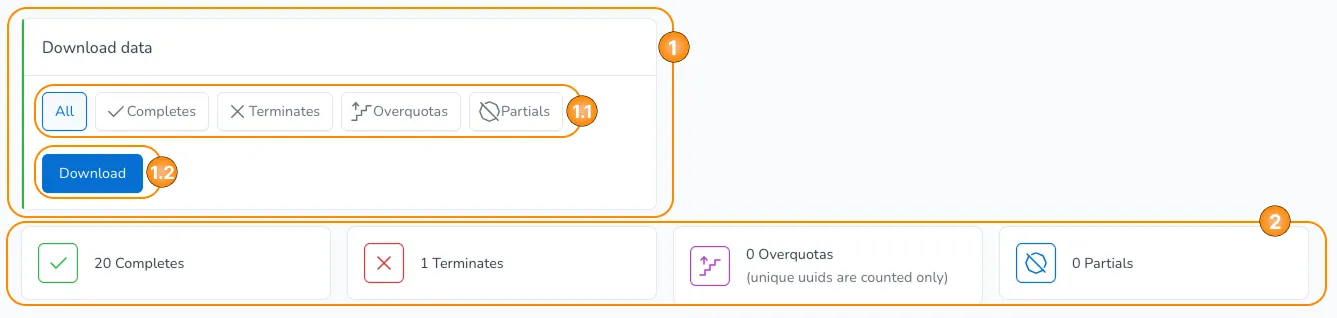
In the Download Data section you can find information on the data for the project:
- Field to access the Data Exports module, described in details in the respective article:
- Field to choose the participants that you want to include in the data export, based on their status.
- Button to generate the data export - you're redirected to the Data Exports module.
- Field to check the number of participants in the project, based on their status.
Terminates
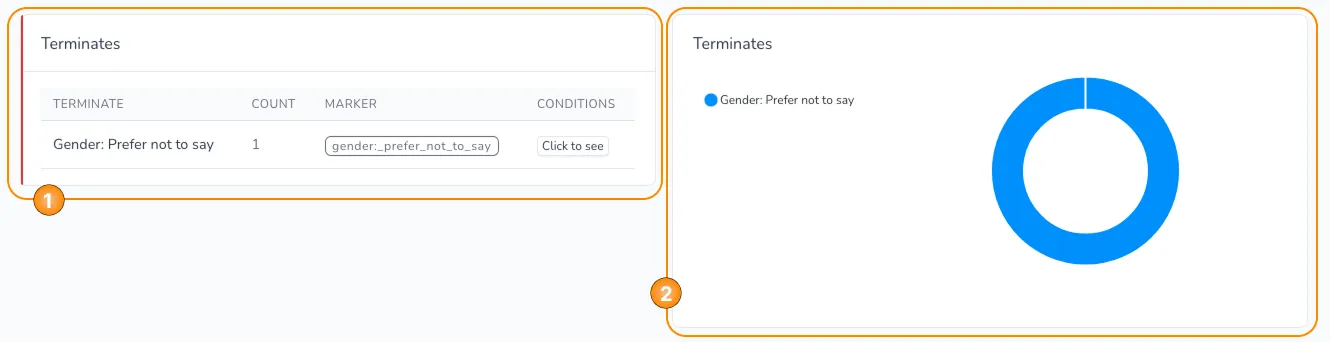
In the Terminates section you can find information on the terminates from the project:
- Field to check information on all terminates that have been set in the project, where the information is split into the following columns:
- TERMINATE: The name of the terminate.
- COUNT: The number of participants that got terminated at this terminate - each participant will have status of terminate in the project.
- MARKER: The marker of the terminate.
- CONDITIONS: The condition(s) on which the terminate is based - when the button is clicked a pop-up window appears with the condition logic:
- Field to check a chart with the split of the terminates in the project, based on the number of participants for each one.
Quotas
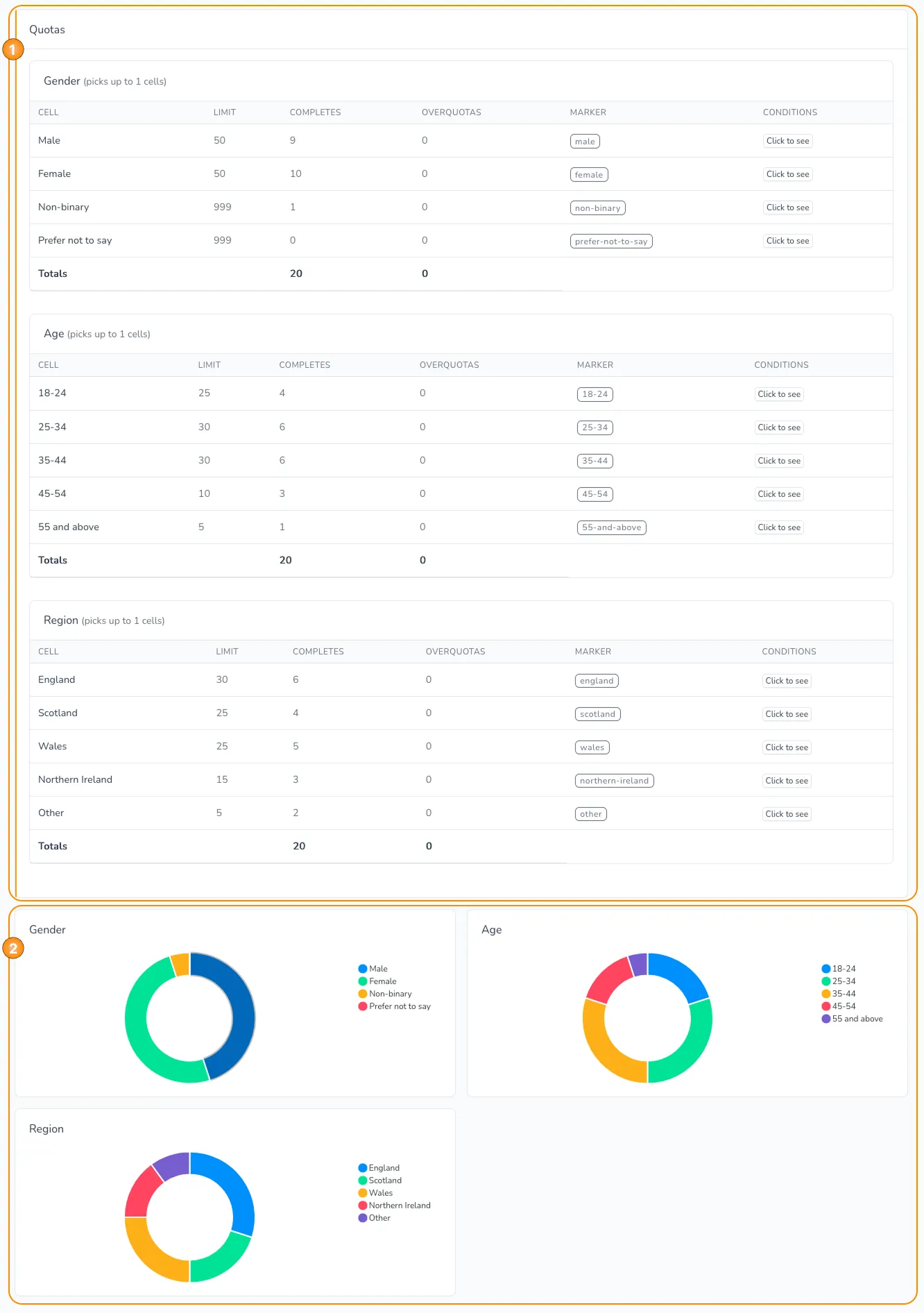
In the Quotas section you can find information on the quota targets from the project:
- Field to check information on all quota targets in the project, where the information is split into separate tables - one for each quota target, and into the following columns for each quota target:
- CELL: The name of the quota cell.
- LIMIT: The limit for the quota cell - how many participants can be qualified for the quota cell.
- COMPLETES: The number of participants that were qualified in the quota cell - they have status complete in the project. At the bottom row of the table there is also information of the total number of completes for the whole quota target.
- OVERQUOTAS: The number of participants that were qualified in the quota cell, but after the limit has been reached - they have status overquota in the project. At the bottom row of the table there is also information of the total number of overquotas for the whole quota target.
- MARKER: The marker of the quota cell.
- CONDITIONS: The condition(s) on which the quota cell is based - when the button is clicked a pop-up window appears with the condition logic:
- Field to check charts with the split of the quota cells in each quota target from the project, based on the number of participants for each one - the charts are interactive, as can be seen in the example below: