Sample sources
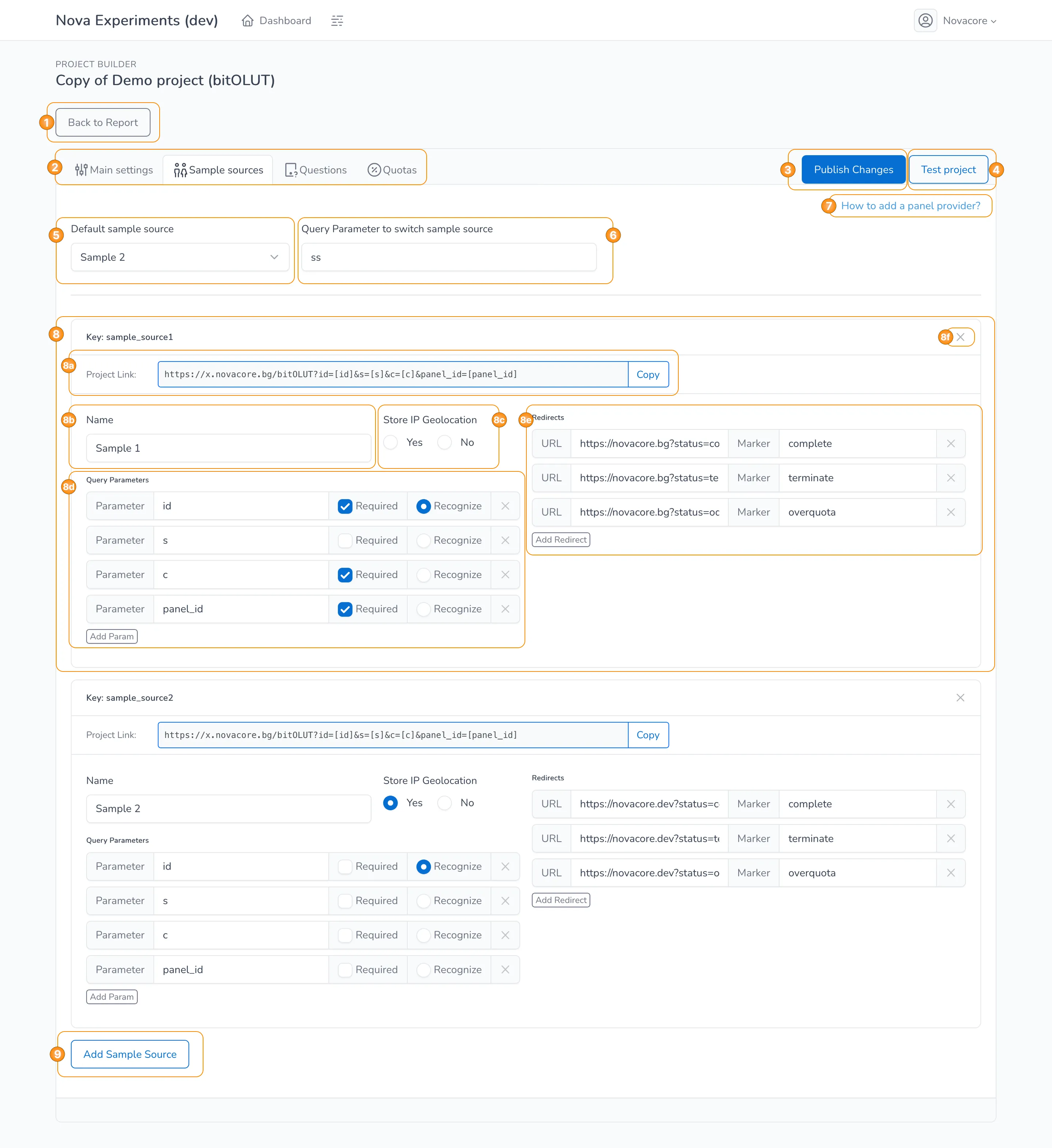
From the Sample Sources section you can adjust the ways the project will be distributed among participants - what we call sample sources.
When you create a new project, the fields are filled with the template values, which can be adjusted afterwards. Full list of the values can be found below.
Template Values
- Default Sample Source: Sample 2;
- Query Parameter to switch Sample Source: ss;
- Sample Source 1:
- Project Link: "https://x.novacore.bg/project_id?id=[id]&s=[s]&c=[c]&panel_id=[panel_id]";
- Name: Sample 1;
- Store IP Geo Location: No value;
- Query Parameters:
- id: Required & Recognized;
- s: Not Required & Not Recognized;
- c: Required;
- panel_id: Required;
- Redirects:
- URL: "https://novacore.bg?status=complete&id=[id]&samplesource=[s]&c=[c]" / Marker: complete;
- URL: "https://novacore.bg?status=terminate&id=[id]&samplesource=[s]&c=[c]" / Marker: terminate;
- URL: "https://novacore.bg?status=overquota&id=[id]&samplesource=[s]&c=[c]" / Marker: overquota;
- Sample Source 2:
- Project Link: "https://x.novacore.bg/project_id?id=[id]&s=[s]&c=[c]&panel_id=[panel_id]";
- Name: Sample 2;
- Store IP Geo Location: Yes;
- Query Parameters:
- id: Recognized;
- s: Not Required & Not Recognized;
- c: Not Required & Not Recognized;
- panel_id: Not Required & Not Recognized;
- Redirects:
- URL: "https://novacore.dev?status=complete&id=[id]&samplesource=[s]&c=[c]" / Marker: complete;
- URL: "https://novacore.dev?status=terminate&id=[id]&samplesource=[s]&c=[c]" / Marker: terminate;
- URL: "https://novacore.dev?status=overquota&id=[id]&samplesource=[s]&c=[c]" / Marker: overquota;
The interactive elements on the page are the following:
- Button to go back to the Project Report page, described in details in the respective section of the documentation.
- Tab menu to choose the desired section of the Project Builder module.
- Button to publish any changes that were done to the project.
- Button that opens the project in testing mode, described in details in the respective article.
- Field to select the default sample source for the project - the dropdown contains all sample sources from the project.
- Field to set the query parameter for switching the sample source.
- Button that opens a pop-up window with detailed instructions on how to add a panel provider as a new sample source.
- Field to adjust the specifics for a particular sample source:
- 8a. Field to view and copy the auto-generated link for the project.
- 8b. Field to set the name of the sample source.
- 8c. Field to choose if the IP addresses of the participants should be kept in the data.
- 8d. Field to set up the query parameters:
- For each parameter you need to set its label, if it's required in the project link and if it should be used as the participants' unique identifier (the "Recognized" option).
- You can mark as many parameters as you want as "Required" but only one parameter can be marked as "Recognized".
- You can add as many parameters as you want using the Add Param button.
- You can delete a parameter with the X button on the far right.
- 8e. Field to set up the redirects:
- For each redirect you need to set its URL and marker.
- There are three pre-defined markers for each project (complete, terminate, overquota) but you can add a custom one, if needed.
- You can add as many redirects as you want using the Add Redirect button.
- You can delete a redirect with the X button on the far right.
- 8f. Button to delete the whole sample source.
- Button to create a new sample source.
Save Changes
You must click on the Publish Changes button before moving to another page in order for any changes to be saved.