Quotas
Main Specifics
Quotas are often used by researchers to obtain a sample of participants that is statistically significant to the population that they are analyzing. They are also used to track and monitor the number of qualified completes in a project.
From the Quotas section you can adjust the quotas in the project - on which questions they will be based and on what criteria. The quotas are represented by quota groups, and you have a few options on how to set them up:
- Fully manually - set up each target individually.
- Prefill the targets from an existing question in the project.
- Mix of the options above - adjust the generated targets.
On this page you'll find detailed information, with examples, about how to use the builder so that you can easily set up your quotas. We'll cover all scenarios, so you're fully prepared.
Working with the Builder
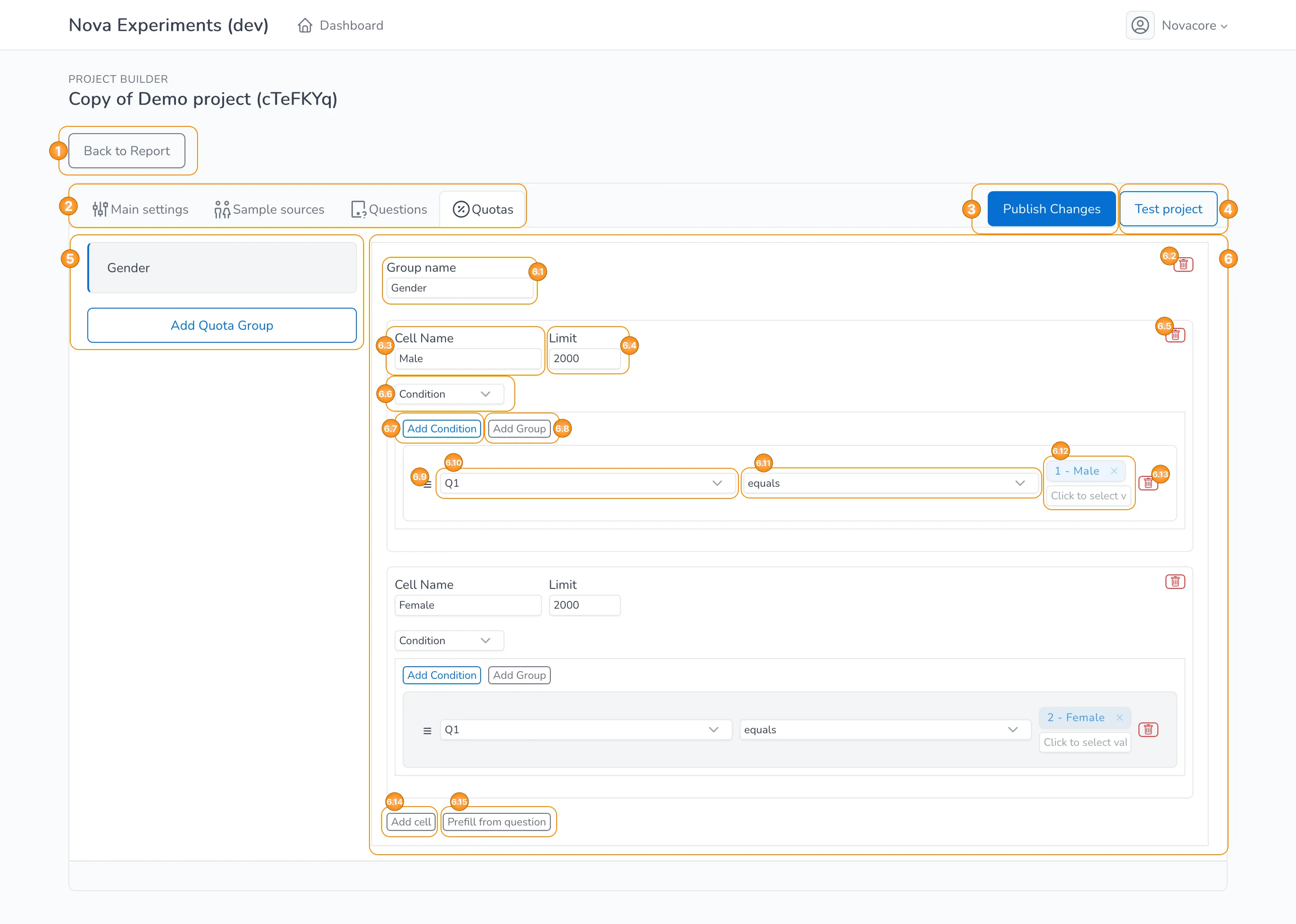
The main interactive elements of the module are the following:
- Button to go back to the Project Report page, described in details in the respective section of the documentation.
- Tab menu to choose the desired section of the Project Builder module.
- Button to publish any changes that were done to the project.
- Button that opens the project in testing mode, described in details in the respective article.
- Field to adjust the quota groups in the project - you can select the quota group that you want to adjust, or you can add a new quota group.
- Field to adjust a specific quota group:
- Field to set the name of the quota group.
- Button to delete the whole quota group.
- Field to set the name of the quota cell.
- Field to set the limit of the quota cell.
- Button to delete the whole quota cell.
- Field to choose the condition for the participants to qualify for the quota cell - you have two options: for the participants to always qualify for the quota cell, as long as they've passed the related checkpoint, or to set up a concrete condition for the quota cell (if selected, the interactive elements from 6.7 to 6.13 are displayed).
- Button to add a new condition.
- Button to add a new group of conditions.
- Element used to drag the condition up or down.
- Dropdown to choose the question on which the condition will be based - all questions from the project are available for selection, as well as the option markers which allows to set a condition on any quota markers from the project.
- Dropdown to choose the operator for the condition - the standard options are available here ("equals", "not equals", "between", etc.).
- Field to choose the specific option(s) from the question for which the condition applies - if the operator "between" is chosen in 6, then there are two separate fields here.
- Button to delete the condition.
- Button to add a new empty quota cell - it won't be prefilled, so you'll need to set everything up manually.
- Button to add a set of quota cell and prefill them based on a specific question from the project.
Here's an example on how to add a quota group on age, based on the age related question from the default template:
You must click on the Publish Changes button before moving to another page in order for any changes to be saved.
Connection to the "Project Report" Page
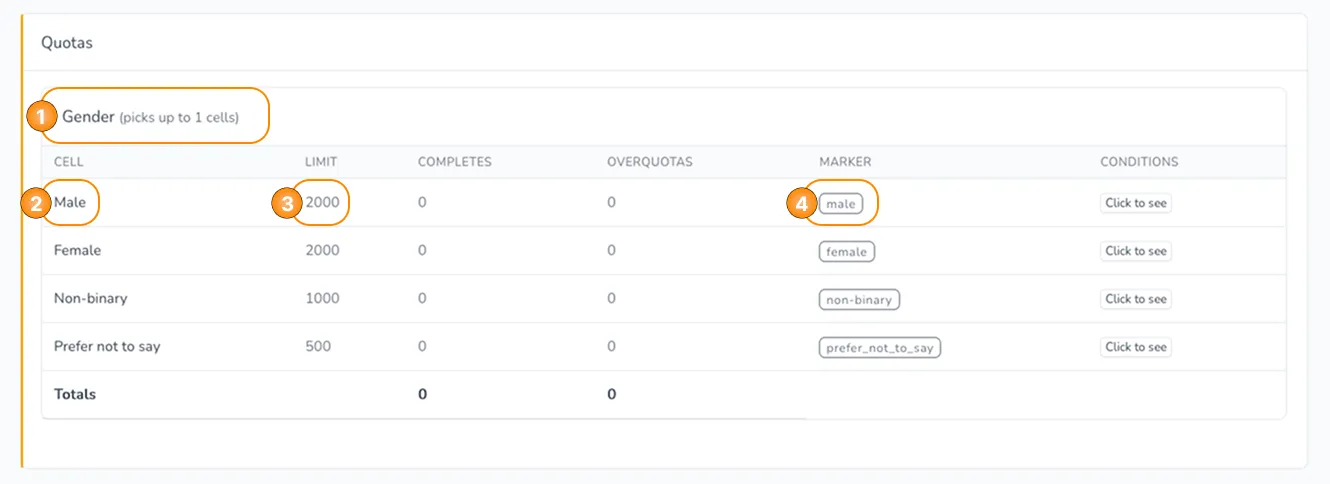
You can view the information on the quotas that were set up for the project on the Project Report page. In the example above, you can see which of the visible fields come directly from what you set up in the builder:
- Name of the quota group (relates to 6.1 from the interactive elements in the builder).
- Name of the quota cell (relates to 6.3 from the interactive elements in the builder).
- Limit of participants that can qualify for the quota cell (relates to 6.4 from the interactive elements in the builder).
- Marker of the quota cell - auto-generated, based on the name of the quota cell.
The whole Project Report page is described in details in the respective section of the documentation.
Checkpoints
In order for a participant to qualify for a quota cell, they need to pass the relevant checkpoint in the project. The checkpoints are described in details in the respective section of the documentation, but the main idea is that a checkpoint is the only way to trigger a quota target.
When the participants pass a checkpoint in the project, that has an attached quota target to it, the system calculates the logic for that quota target. If the conditions for a specific quota cells are met (and this quota cells is still available, e.g. its limit hasn't been reached yet), the participants is qualified for this quota cell and the respective quota marker gets attached to them.