Data Exports
Main Specifics
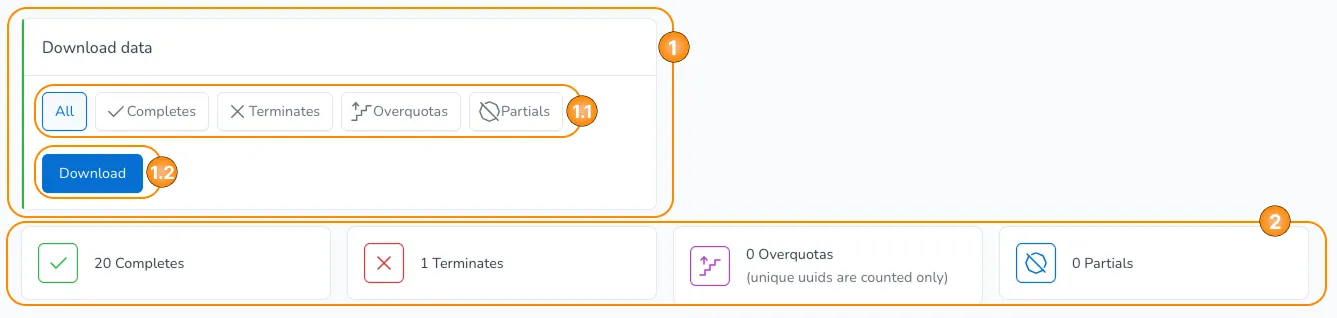
As already mentioned in the article on the Project Report page the data exports for each project can be downloaded through there.
Once you choose the desired type of participants in the data export (1.1) and click on the Download button (1.2), you're redirected to a new page where you need to wait a bit for the data export to be generated. Once this is done, an Excel file is downloaded on your device.
In this article we'll go through the specifics of the data export itself and what it represents.
Data Export
The data export is downloaded in Excel format and the file has two separate sheets inside - data and layout. We'll go through both of them in the following paragraphs.
The file is named in the format "{Project ID}_{Type of Participants}_{Date/Time}.xlsx", e.g. "fasnoNr_all_2026-01-27-11-16-07.xlsx".
Data Sheet
In the data sheet we can find the actual data from the project.
The heading row represents the names of the variables in the data - each variable has its own column in the table. The other rows represent the data of the participants - each row is the data for one participant.
Below you can find an example data set:
| uuid | current_page | status | system_total_time_spent | started_at | finished_at | marker | url | browser | user_agent | os | device | id | s | c | panel_id | geo_location | ip | Q1 | Q2 | Q3 | system_time_spent_page_page1 | system_time_spent_page_page2 | system_time_spent_page_page3 |
|---|---|---|---|---|---|---|---|---|---|---|---|---|---|---|---|---|---|---|---|---|---|---|---|
| 1adc0019-2f13-468f-be52-76e53687ea11 | last_page_reached | complete | 12 | 2026-01-22 08:28:35 | 2026-01-22 08:28:48 | {"group":"Age","marker":"35-44","type":"quota"} | https://novax.novacore.dev/fasnoNr | Firefox | Mozilla/5.0 (Macintosh; Intel Mac OS X 10.15; rv:146.0) Gecko/20100101 Firefox/146.0 | OS X, 10.15 | Macintosh, desktop | XXX | XX.XX.XX.XX | 1 | 3 | 2 | 3 | 2 | 7 | ||||
| c93b7f69-5e2b-4789-b43f-0d73f0035366 | last_page_reached | complete | 8 | 2026-01-22 08:28:55 | 2026-01-22 08:29:04 | {"group":"Age","marker":"25-34","type":"quota"} | https://novax.novacore.dev/fasnoNr | Firefox | Mozilla/5.0 (Macintosh; Intel Mac OS X 10.15; rv:146.0) Gecko/20100101 Firefox/146.0 | OS X, 10.15 | Macintosh, desktop | XXX | XX.XX.XX.XX | 2 | 2 | 4 | 2 | 3 | 3 | ||||
| ba138d61-3bd0-4795-b498-b7763a805b6d | last_page_reached | complete | 11 | 2026-01-22 08:29:20 | 2026-01-22 08:29:32 | {"group":"Age","marker":"18-24","type":"quota"} | https://novax.novacore.dev/fasnoNr | Firefox | Mozilla/5.0 (Macintosh; Intel Mac OS X 10.15; rv:146.0) Gecko/20100101 Firefox/146.0 | OS X, 10.15 | Macintosh, desktop | XXX | XX.XX.XX.XX | 2 | 1 | 3 | 3 | 5 | 3 | ||||
| 0aaac2e4-ab5e-42c3-961a-caf6fd7d6c3a | page2 | terminate | 2026-01-22 09:12:20 | 2026-01-22 09:12:23 | {"group":"terminate","marker":"gender:_prefer_not_to_say","type":"terminate"} | https://novax.novacore.dev/fasnoNr | Firefox | Mozilla/5.0 (Macintosh; Intel Mac OS X 10.15; rv:146.0) Gecko/20100101 Firefox/146.0 | OS X, 10.15 | Macintosh, desktop | XXX | XX.XX.XX.XX | 4 | 3 |
It's important to note how the data for each question type is visualized:
- Radio
- Checkbox
- Number
- Text
- Social Media
The radio question type is represented in the data as a variable with one column. The values are based on the ones set up in the project, but usually they start from 1 and are incremented with each answer option.
For example, we have a radio question with label Q1 and options "Option 1", "Option 2" and "Option 3". It will have a variable name of Q1 in the data export and values of 1, 2 or 3, based on the answer option the participant has chosen.
The checkbox question type is represented in the data as multiple variables - each answer option has a separate column in the data. Each answer option has a value of 0 or 1 - if the option has been checked, the value is 1, otherwise it's 0.
For example, we have a checkbox question with label Q1 and options "Option 1", "Option 2" and "Option 3". It will have three variables in the data export - Q1r1, Q1r2 and Q1r3, and values of 0 or 1 for each one, based on the answer option the participant has chosen.
The number question type is represented in the data as multiple variables - each answer option has a separate column in the data. Each answer option has the numeric value that the participant has provided.
For example, we have a number question with label Q1 and options "Option 1", "Option 2" and "Option 3". It will have three variables in the data export - Q1r1, Q1r2 and Q1r3, and numeric values for each one, based on the answer option the participant has given.
The text question type is represented in the data as multiple variables - each answer option has a separate column in the data. Each answer option has the alpa-numeric value that the participant has provided.
For example, we have a text question with label Q1 and options "Option 1", "Option 2" and "Option 3". It will have three variables in the data export - Q1r1, Q1r2 and Q1r3, and alpha-numeric values for each one, based on the answer option the participant has given.
The social media question type is represented in the data as multiple variables - each interactive element has a separate column in the data. There is also an additional variable for the time the participant spent on the question.
Each social media question has the following variables in the data export (based on question label of social_media_1):
- social_media_1like: it has a value, based on the emoji the participant has chosen first:
- angry
- annoyed
- astonished
- cry
- laugh
- like
- love
- social_media_1comment: it has an alpha-numeric value, based on the comment the participant has provided;
- social_media_1repost: it has a value of Reposted, if the participant clicked on the button, otherwise the value is 0;
- social_media_1report: it has a value of Report, if the participant clicked on the button, otherwise the value is 0;
- social_media_1time: it has a numeric value, based on the time the participant has spent on the question, measured in seconds;
If a question or an answer option hasn't been seen by the participant it won't have any value in the data sheet.
Layout Sheet
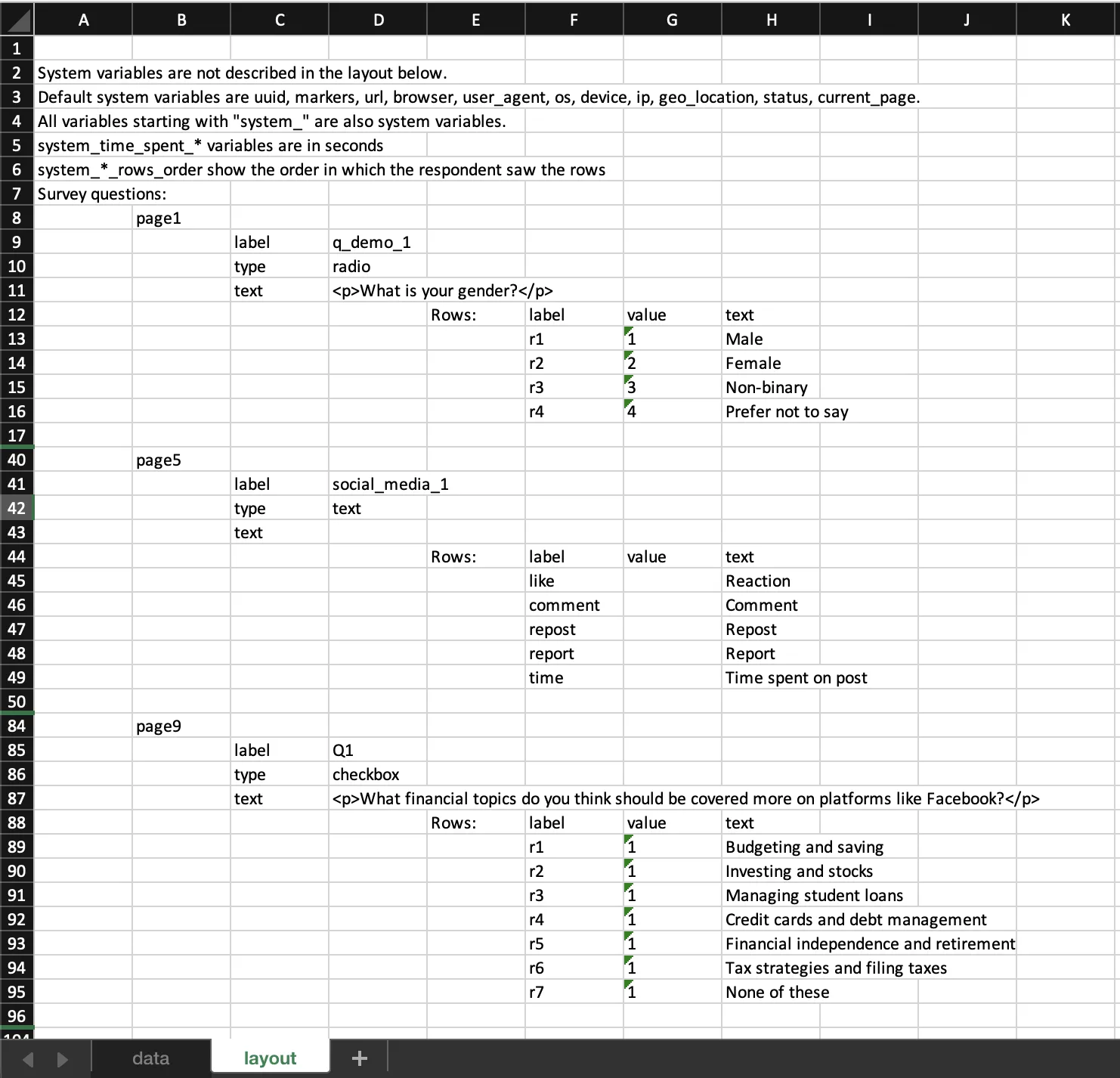
In the layout sheet we can find information on the variables in the data export.
It's important to note that the system variables aren't shown here, but you can find detailed information on them in the next section in this article.
Otherwise, the rest of the variables can be found here and for each one there is information on:
- The page on which the question appears.
- The label of the question.
- The type of the question.
- The text of the question.
- The answer options in the questions, where for each one there is information on:
- The label of the answer option.
- The value of the answer option.
- The text of the answer option.
System Variables
Here we'll go through the list of system variables that are part of each data export and what each variable represents:
- uuid: the unique ID of the participant that is auto-generated by the system;
- current_page: the last page the participant saw before they left the project;
- status: the status of the participant, with possible options:
- complete
- overquota
- terminate
- partial
- system_total_time_spent: the total time that the participant has spent filling the project, measured in seconds;
- started_at: the date and time when the participant started filling the project;
- finished_at: the date and time when the participant finished filling the project;
- marker: the list of markers for the participant;
- url: the URL that the participant used to fill the project;
- browser: information on the browser, the participant used to fill the project;
- user_agent: information on the browser's user agent, the participant used to fill the project;
- os: information on the operating system of the device, the participant used to fill the project;
- device: information on the device, the participant used to fill the project;
- system_time_spent_page_pageXX: system variable for the time spent on a page - there is one such variable for each visible page in the project with a label of system_time_spent_page_pageXX, where XX is the page number.
- system_XX_rows_order: another set of system variables that are generated for the questions where shuffling has been enabled. These variables store the order of the answer options in the question - how the participant saw them while filling the project. Their label is system_XX_rows_order, where XX is the question label.
- If you have used any sample sources in the project, the parameters from them will also appear as variables in the data. The default ones are:
- id: the unique ID of the participant;
- s: the sample source of the participant;
- c: the country code of the participant;
- panel_id: the ID of the panel from where the participant came from;